
Messages
The Messages application is an internal messaging system that enables real-time communication with other ElyOS users.
Basic Information
Section titled “Basic Information”- Category: Communication
- Multi-Instance: No
- Permission: Public (all users)
Interface Overview
Section titled “Interface Overview”The Messages application consists of three main parts:
- Right panel: User list with online/offline status (collapsible)
- Left panel: Conversation list
- Center panel: Active conversation messages
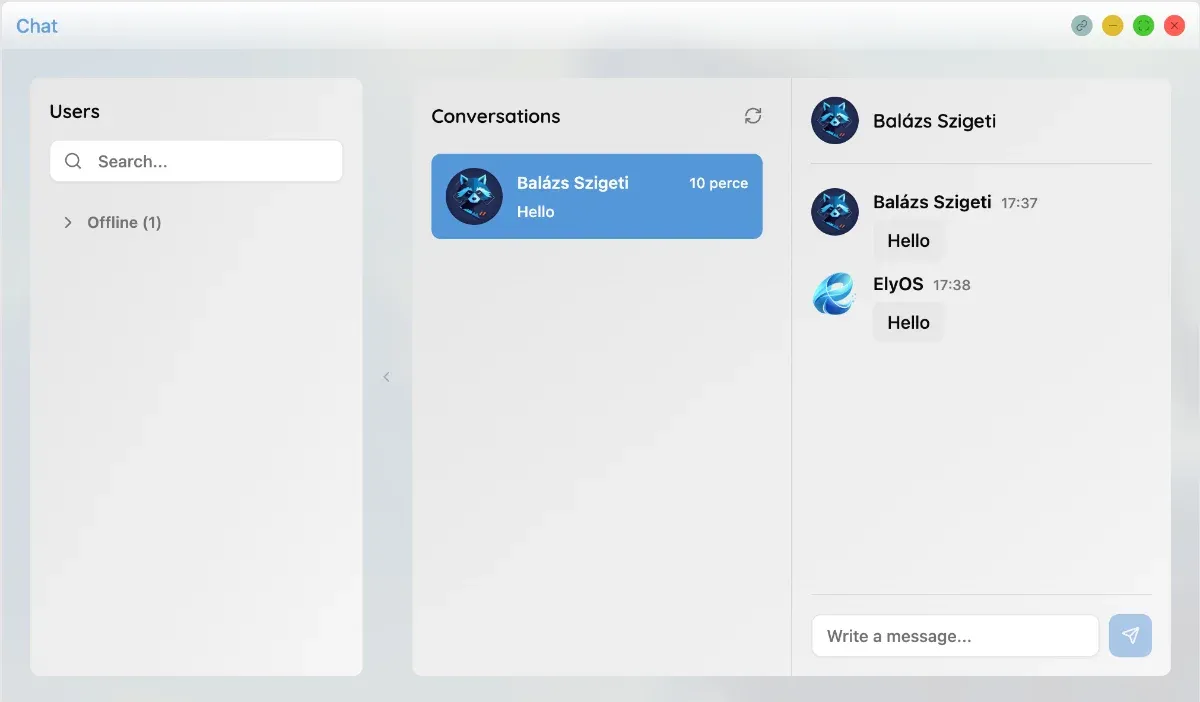 Messages application interface
User List
Section titled “User List”The right panel shows all ElyOS users grouped by online/offline status:
- Online users: Green status indicator, expanded by default
- Offline users: Gray status indicator, collapsed by default
Searching Users
Section titled “Searching Users”Quickly find the desired person in the user list:
- Use the search field at the top of the right panel
- Search by name or username
- Results automatically filter while typing
Collapsing Sidebar
Section titled “Collapsing Sidebar”You can collapse the right user list with the arrow button on its left edge, leaving more space for messages. The state is automatically saved.
Conversations
Section titled “Conversations”Starting New Conversation
Section titled “Starting New Conversation”Initiate a new conversation:
- Click on a user in the right list
- The conversation is automatically created or opened
- Type the first message
- Press Enter or click the send button
Conversation List
Section titled “Conversation List”The left panel shows your active conversations:
- User name and profile picture: Conversation partner details
- Last message preview: First 50 characters of the last message
- Timestamp: How long ago the last message arrived (relative time format)
- Unread message count: Red badge with unread message count
Conversations automatically sort by most recent activity. The most recent conversation always appears at the top.
Refreshing Conversations
Section titled “Refreshing Conversations”You can manually refresh the list with the refresh button in the conversation list header.
Sending Messages
Section titled “Sending Messages”Text Message
Section titled “Text Message”Sending a simple text message:
- Select a conversation
- Click on the message input field
- Type the message
- Press Enter or click the send button
Typing Indicator
Section titled “Typing Indicator”When you type a message, your conversation partner sees that you’re typing. The typing indicator automatically appears and disappears after 3 seconds of inactivity.
Message Display
Section titled “Message Display”Messages are displayed in groups:
- Profile picture: Only appears for the first message in a group
- Sender name and timestamp: Visible on the first message
- Message content: Light background with rounded corners
- Hover effect: Messages are highlighted when hovered over
Real-Time Communication
Section titled “Real-Time Communication”The Messages application uses WebSocket technology for real-time communication:
- Instant message delivery: Messages appear immediately for both parties
- Online status: See who’s online in real-time
- Typing indicator: See when the other party is typing
- Automatic refresh: No need for manual refresh
Notifications and Indicators
Section titled “Notifications and Indicators”Taskbar Icon
Section titled “Taskbar Icon”The messages icon (message bubble) on the right side of the taskbar indicates unread message count:
- Blue badge: Appears if there are unread messages
- Counter: Shows unread message count (maximum 99+)
- Quick access: Clicking the icon opens the Messages application
Application Window Indicator
Section titled “Application Window Indicator”If the Messages application is open but minimized or inactive:
- A badge appears on the application icon on the taskbar with unread message count
- This helps quickly notice new messages without bringing the application to foreground
Tips and Tricks
Section titled “Tips and Tricks”- Quick conversation start: Click any user in the right list
- Collapse sidebar: More space for messages if you collapse the user list
- Auto-scroll: New messages automatically scroll to the bottom of the screen
- Relative time format: Timestamps appear in relative format (e.g., “2 minutes ago”, “1 hour ago”)
- Taskbar icon: Quickly check unread message count on the right side of the taskbar
Privacy and Security
Section titled “Privacy and Security”- Messages are securely stored in the database
- Only conversation participants can see messages
- Real-time communication occurs via WebSocket protocol
Related Topics
Section titled “Related Topics”- Notifications - Managing system notifications
- Settings - Customizing system settings