
Notifications
The ElyOS notification system manages all system and application notifications in a centralized manner. Notifications appear in five different ways: as toast notifications, in modal windows for critical notifications, in the Notification Center panel, in the Notifications application, and on the taskbar notification icon.
Basic Information
Section titled “Basic Information”- Category: Utilities
- Multi-instance: No
- Permission: Public (all users)
How the Notification System Works
Section titled “How the Notification System Works”The ElyOS notification system consists of five main components:
Toast Notifications
Section titled “Toast Notifications”When a new notification arrives, a toast notification appears in the top right corner of the screen:
- Position: Top right corner
- Duration: 5 seconds (automatically disappears)
- Color-coded by type:
- Info: Blue
- Success: Green
- Warning: Yellow
- Error: Red
- Content: Title and message
- Closing: With X button or automatically
Important: Critical type notifications do NOT appear as toasts, but in a modal window (see below).
Critical Notifications Modal Window
Section titled “Critical Notifications Modal Window”Critical notifications receive special handling as they require immediate attention:
- Appearance: Modal window (dialog box) in the center of the screen
- Blocking: Cannot be closed with X button, only with OK button
- User interaction required: The user must read and click the OK button
- Icon: Red warning triangle
- Content: Title, message and optional details
Why is this important? Critical notifications indicate events that the user must definitely notice. For example, in a hospital system about a new urgent case arriving, or in a police system about an urgent report.
Example use cases:
- Hospital system: New emergency case arrived
- Police system: Urgent report received
- Industrial system: Critical error or security event
Notification Center Panel
Section titled “Notification Center Panel”Clicking the notification icon on the taskbar opens the Notification Center panel:
- Position: Opens on the right side of the screen
- Content: List of recent notifications in chronological order
- Quick actions: Refresh, mark all as read, delete all, close
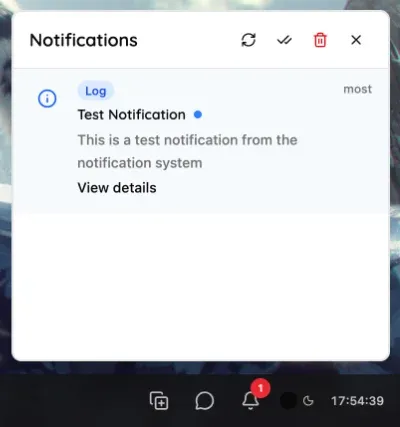 The Notification Center panel
Taskbar Notification Icon
Section titled “Taskbar Notification Icon”The bell icon on the right side of the taskbar indicates the status of notifications:
- Default state: Only the bell icon is visible
- Unread notifications: Red badge with the number of unread notifications (maximum 99+)
- Critical notification: Yellow badge with exclamation mark that pulses
- Combined: Both badges can appear simultaneously
Notifications Application
Section titled “Notifications Application”Application for viewing complete notification history:
- Table display: All notifications with detailed data
- Pagination and sorting: Managing large amounts of notifications
- Detailed view: Complete information for individual notifications
Notification Types
Section titled “Notification Types”ElyOS supports different types of notifications that are visually distinguishable:
Information
Section titled “Information”General informational notifications with blue icon:
- System information
- Application events
- General messages
Success
Section titled “Success”Successful operations with green icon:
- Successful saves
- Completed processes
- Positive feedback
Warning
Section titled “Warning”Events requiring attention with yellow icon:
- Warnings
- Important information
- Approaching deadlines
Error/Critical
Section titled “Error/Critical”Errors and critical events with red icon:
- System errors
- Security warnings
- Critical events
Critical notifications: Critical type notifications appear with a yellow exclamation mark on the taskbar icon and pulse to attract attention.
Notification Center Panel
Section titled “Notification Center Panel”Opening the Panel
Section titled “Opening the Panel”The Notification Center panel opens by clicking the bell icon on the right side of the taskbar.
Panel Structure
Section titled “Panel Structure”Header:
- Title: “Notifications”
- Refresh button: Refresh the notifications list
- Mark all as read button: Mark all notifications as read (only if there are unread ones)
- Delete all button: Delete all notifications (only if there are notifications)
- Close button: Close the panel
Notifications list:
Each notification contains the following information:
- Type icon: Colored icon according to type (info, success, warning, error)
- Application name: In blue badge, clickable (opens the application that sent the notification, e.g., Chat, Settings, etc.)
- Title: The notification title
- Unread indicator: Blue dot for unread notifications
- Timestamp: In relative time format (e.g., “2 minutes ago”, “1 hour ago”)
- Message: The full notification text
- Details button: Opens the Notifications application with the detailed view of that notification
Hover actions:
When you move the mouse pointer over a notification, quick actions appear:
- Mark as read: Blue checkmark icon (only for unread notifications)
- Delete: Red trash icon
Panel Operation
Section titled “Panel Operation”- Auto-close: Automatically closes when clicking outside the panel
- Animation: Appears with slide-in animation
- Scrolling: If there are many notifications, the list is scrollable
- Empty state: If there are no notifications, a bell icon and “No notifications” text appear
Notifications Application
Section titled “Notifications Application”Opening the Application
Section titled “Opening the Application”You can open the Notifications application in the following ways:
- Start Panel: By clicking the Notifications application icon from the Start Panel
- Desktop icon: By clicking on it if the Notifications application icon is placed on the desktop
- Details button: By clicking the “Details” button of a notification in the Notification Center panel (opens the Notifications application with the detailed view of that notification)
Note: Clicking on the application name (blue badge) in the Notification Center panel does NOT open the Notifications application, but the application that sent the notification (e.g., if you click on a chat notification, the Chat application opens).
Notifications List
Section titled “Notifications List”On the application’s main screen, notifications appear in table format:
Table columns:
- Type: The notification type (info, success, warning, error/critical)
- Title: The notification title
- Message: The notification text
- Application: Which application it comes from
- Created: When the notification arrived
Table functions:
- Sorting: Can be sorted by any column
- Pagination: 20 notifications per page
- Details button: Button at the end of the row opens the notification details
Actions (3 dots icon):
- Mark as read: Mark the notification as read (only for unread notifications)
- Delete: Delete the notification
Notification Details
Section titled “Notification Details”In the detailed view of a notification, the following information is visible:
- Title: The notification title
- Message: The full message text
- Details: Additional information (if any)
- Type: The notification type
- Application: Source application
- Status: Read or unread
- Created: Creation time
- Read: Reading time (if already read)
Actions in the bottom function bar:
- Mark as read: Mark the notification as read (only for unread notifications)
- Open application: Open the source application (if available)
- Delete: Delete the notification (asks for confirmation)
Managing Notifications
Section titled “Managing Notifications”Marking as Read
Section titled “Marking as Read”In Notification Center panel:
- Automatic: Clicking on a notification (application name or details button) automatically marks it as read
- Manual: By clicking the blue checkmark icon in hover state
- All: By clicking the “Mark all as read” button in the header
In Notifications application:
- Individually: With the “Mark as read” option under the 3 dots icon
- In details view: With the “Mark as read” button in the bottom function bar
Deletion
Section titled “Deletion”In Notification Center panel:
- Individually: By clicking the red trash icon in hover state
- All: By clicking the “Delete all” button in the header
In Notifications application:
- Individually: With the “Delete” option under the 3 dots icon
- In details view: With the “Delete” button in the bottom function bar (asks for confirmation)
Note: Deleted notifications are permanently deleted and cannot be restored.
Opening Application
Section titled “Opening Application”If a notification is related to an application:
- In Notification Center panel: Click on the application name (blue badge)
- In Notifications application: In the details view, click the “Open application” button
The application opens with the parameters specified in the notification (if any).
Taskbar Notification Icon in Detail
Section titled “Taskbar Notification Icon in Detail”Icon States
Section titled “Icon States”The bell icon on the right side of the taskbar changes dynamically according to the status of notifications:
1. Default state (no notifications):
- Only the bell icon is visible
- No badge
2. Unread notifications:
- Red badge in the top right corner
- The number of unread notifications on the badge (1-99)
- “99+” label for notifications above 99
3. Critical notification:
- Yellow badge in the top right corner
- Black exclamation mark on the badge
- Pulsing animation to attract attention
4. Combined state:
- If there are both critical AND unread notifications
- The yellow critical badge appears higher
- The red unread counter appears lower
Icon Actions
Section titled “Icon Actions”- Left click: Opens/closes the Notification Center panel
Application Notifications
Section titled “Application Notifications”Some applications have their own notification counter:
Messages Application
Section titled “Messages Application”- If the Chat application is open but minimized or inactive
- A badge appears on the application icon on the taskbar with the number of unread messages
- This is independent of Notification Center notifications
Other Applications
Section titled “Other Applications”Other applications can also use this feature to indicate the number of unread items on the taskbar.
Tips and Tricks
Section titled “Tips and Tricks”- Quick access: The taskbar notification icon is always accessible, wherever you work
- Critical notifications: The pulsing yellow badge and modal window immediately draw attention to important events
- Toast notifications: Automatically appearing toast notifications don’t disturb work, they disappear after 5 seconds
- Details button: Quickly open the Notifications application at a specific notification
- Open application: Directly open the related application from the notification
- Hover actions: Quickly manage notifications with the mouse pointer in the Notification Center panel
- Automatic reading: Notifications automatically become read when clicked
- Acknowledging critical notifications: Critical notifications must always be read and acknowledged with the OK button