
Login and Authentication
Introduction
Section titled “Introduction”ElyOS is a closed system accessible only to authenticated users. To access the system, you must have a valid user account. This guide covers different login methods, account creation, and security features that help protect your account.
Why is Login Required?
Section titled “Why is Login Required?”The ElyOS authentication system ensures that:
- Only authorized users can access the system
- Each user has their own personalized environment
- Data and settings are kept secure
- The system can track user activities
Authentication
Section titled “Authentication”ElyOS supports multiple login methods for your convenience.
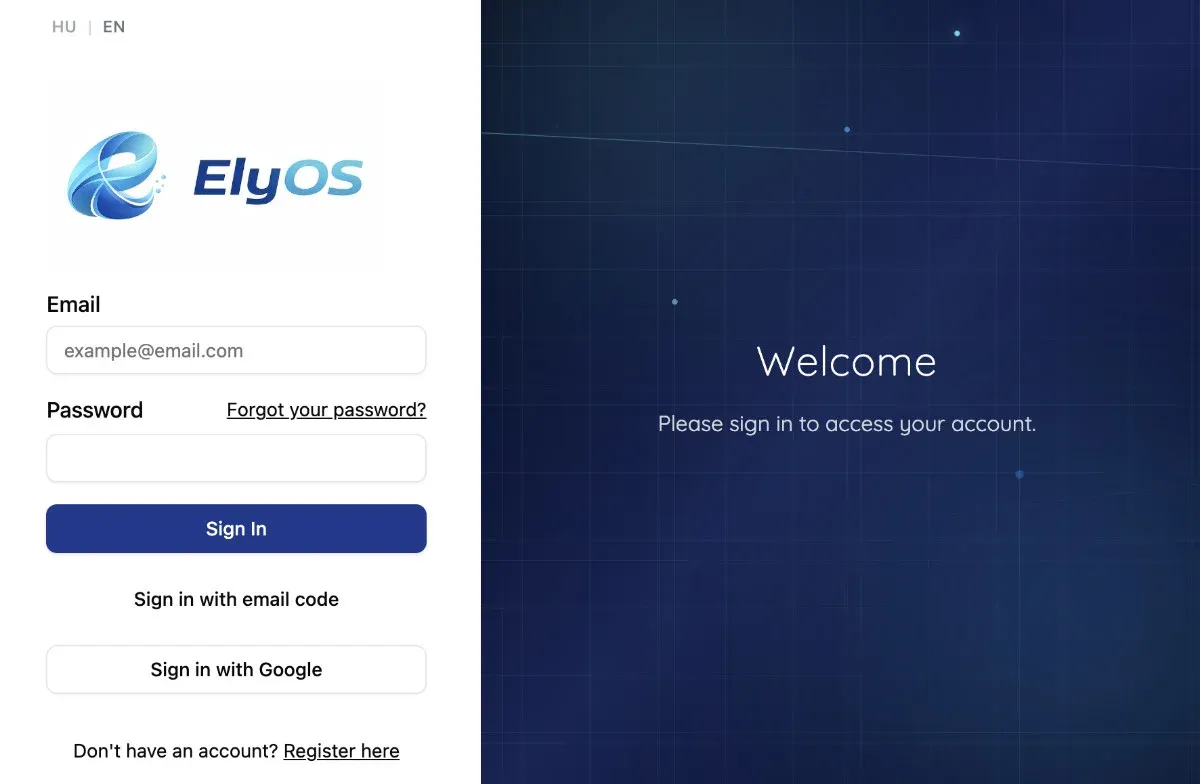 The login screen with all available login methods
Email/Password Login
Section titled “Email/Password Login”The most common login method using email address and password.
Steps:
- Open the ElyOS login page
- Enter your email address in the “Email address” field
- Enter your password in the “Password” field
- Click the “Login” button
Login with Email Code
Section titled “Login with Email Code”Email OTP (one-time password) login is a passwordless authentication method.
Steps:
- Open the ElyOS login page
- Click the “Login with email code” link
- Enter your email address
- Click the “Send code” button
- Check your email account
- Enter the received one-time code
- Click the “Verify” button
Login with Google Account
Section titled “Login with Google Account”If enabled by the administrator, you can also log in with your Google account.
Steps:
- Open the ElyOS login page
- Click the “Sign in with Google” button
- Select your Google account
- Grant ElyOS access
- You will be automatically logged into ElyOS
Note: If you log in with a Google account for the first time, a new ElyOS user account will be automatically created with your email address. This feature is not available in all installations.
Registration
Section titled “Registration”Create a new user account with email verification.
Tip: If you log in with a Google account for the first time, you don’t need to register separately - your account will be created automatically.
Email/password registration steps:
- Open the ElyOS login page
- Click the “Don’t have an account? Register here” link
- Enter your full name
- Enter your email address
- Choose a strong password
- Confirm the password
- Click the “Create account” button
- Check your email account
- Click the verification link in the email
- After email confirmation, you can log in
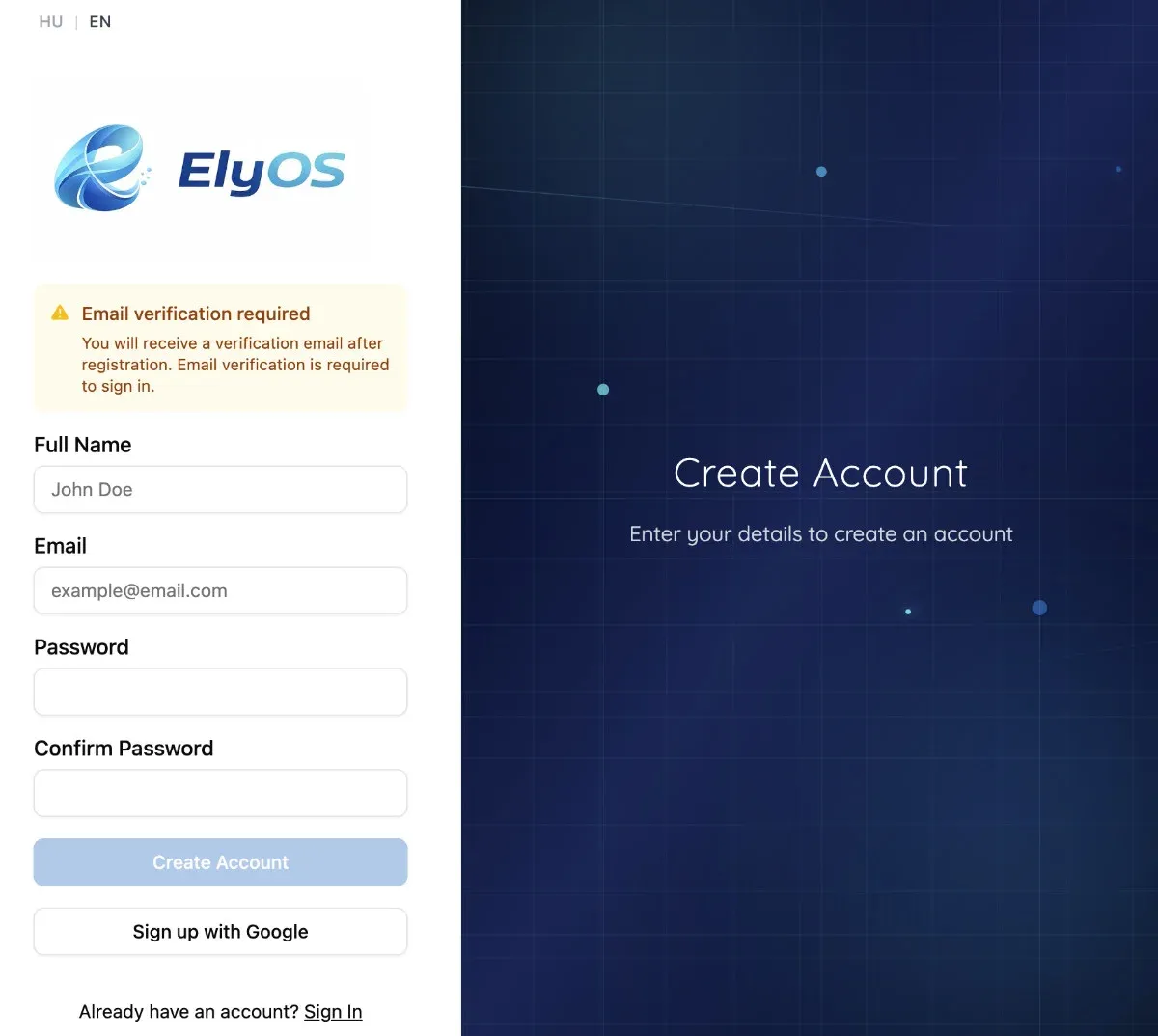 Registration form for account creation
Password Reset
Section titled “Password Reset”If you forgot your password, you can easily reset it.
Steps:
- Open the ElyOS login page
- Click the “Forgot your password?” link
- Enter your email address
- Click the “Send password reset link” button
- Check your email account
- Click the reset link in the email
- Enter a new password
- Confirm the new password
- Click the “Reset password” button
- Log in with your new password
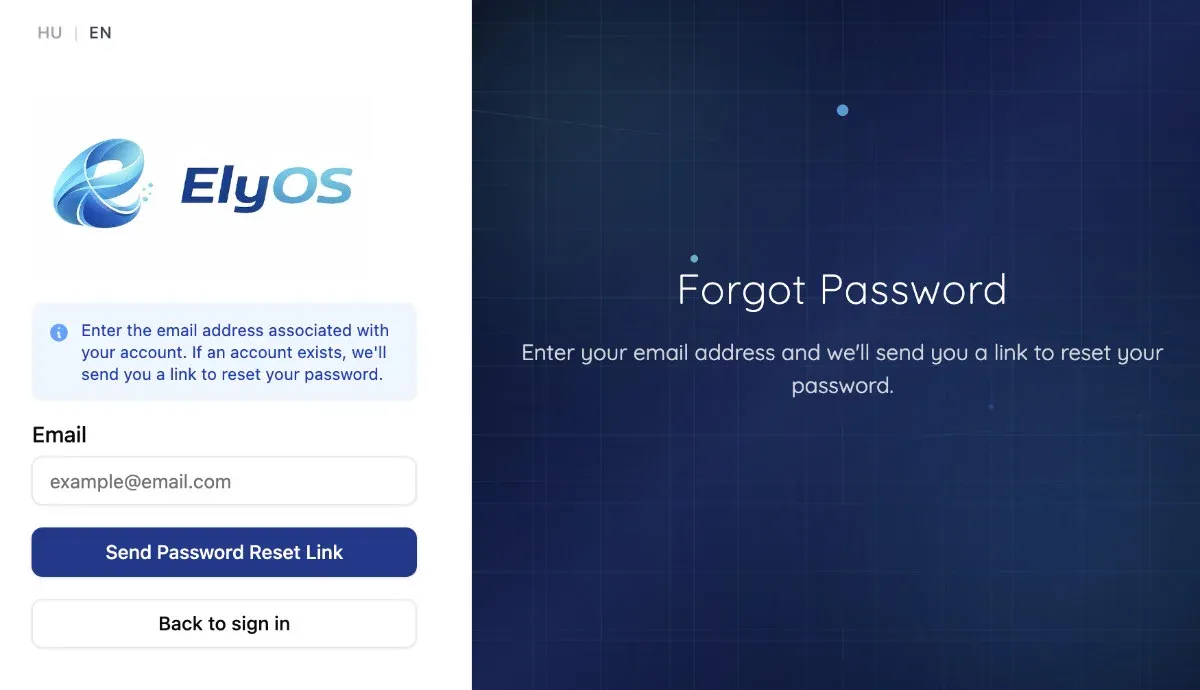 Sending password reset request with email address
Two-Factor Authentication (2FA)
Section titled “Two-Factor Authentication (2FA)”Two-factor authentication adds an extra layer of security to your account. After logging in, you can enable this feature in the Settings application.
What does 2FA provide?
- Extra protection for your account
- Use of authenticator app (e.g., Google Authenticator, Authy)
- Backup codes for emergencies
How does it work?
- After enabling, you must provide a 6-digit code at each login
- The code is generated by the authenticator app
- The code changes every 30 seconds
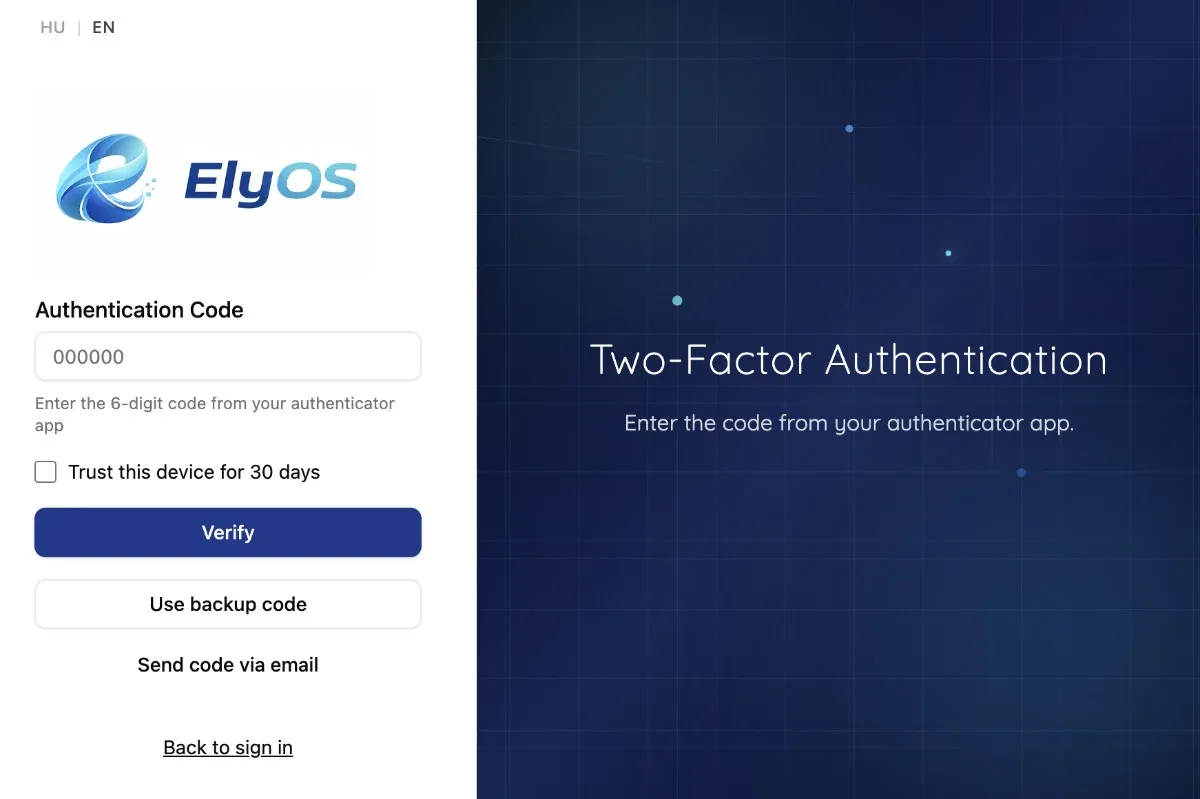 Two-factor authentication verification at login
Trust Device
Section titled “Trust Device”On the 2FA login screen, you have the option to enable “Trust this device for 30 days”.
What does this mean?
- If you check this option, the system won’t ask for the 2FA code again on this device for 30 days
- This is convenient if you regularly log in from your own secure device
- After the 30-day period, you must provide the 2FA code again
- Each device is managed separately - if you log in from multiple devices, you can mark each one separately
When to use it?
- On your own computer or phone that only you use
- In a secure environment where others cannot access the device
When NOT to use it?
- On public or shared computers
- On work devices that others may use
- On devices that can be easily lost or stolen
Using Backup Codes
Section titled “Using Backup Codes”When setting up 2FA, the system generates backup (recovery) codes for you.
Why are backup codes important?
- If you lose or your authenticator device malfunctions, you can still log in with these codes
- Each code can only be used once
- You typically receive 10 backup codes
How to store them securely?
- Save them in a secure place (password manager, encrypted file)
- Print them and store in a secure location (safe, locked drawer)
- Don’t store them on the same device where the authenticator app is
- Never share backup codes with others
Using a backup code:
- On the 2FA login screen, click the “Use backup code” link
- Enter one of your unused backup codes
- The code becomes invalid after use
- After logging in, immediately set up a new authenticator device or generate new backup codes
Important: If you run out of backup codes, you can generate new ones anytime in Settings > Security. Generating new codes invalidates old, unused codes.
Detailed guide: A detailed description of setting up and managing 2FA can be found in the Settings documentation (coming soon).
Session Management
Section titled “Session Management”Automatic Session Preservation
Section titled “Automatic Session Preservation”ElyOS automatically preserves your session, so you don’t have to log in every time.
- The system securely stores session information
- You will be automatically logged in on your next visit
- Session preservation works even after closing the browser
Logout
Section titled “Logout”You can log out of the system at any time by clicking the “Logout” button in the Start Menu.
Steps:
- Click on your user profile in the taskbar
- Select the “Logout” option
- The system immediately logs you out and redirects to the login page
Session Timeout
Section titled “Session Timeout”For security reasons, sessions expire after a certain time.
- Sessions are valid for 7 days by default
- The system automatically renews the session if you actively use it
- After expiration, you must log in again
- The timeout period is set by the administrator
Note: Inactivity-based automatic logout and pre-expiration warning features are currently under development.
Session Limitation
Section titled “Session Limitation”For security reasons, ElyOS allows only one active session at a time.
- You can only be logged in from one device or browser at a time
- A new login automatically logs out previous sessions
- This prevents parallel access and increases security
- If you log in from another device, you will be automatically logged out on the previous device
First Steps on the Desktop
Section titled “First Steps on the Desktop”After successful login, the ElyOS desktop environment appears. You are now ready to use the system.
What You Will See
Section titled “What You Will See”- Desktop: The main workspace where application windows appear
- Taskbar: Located on the bottom (or top) bar with application buttons and system icons
- Start Menu: Menu for launching applications
- Desktop Shortcuts: Quick access to frequently used applications
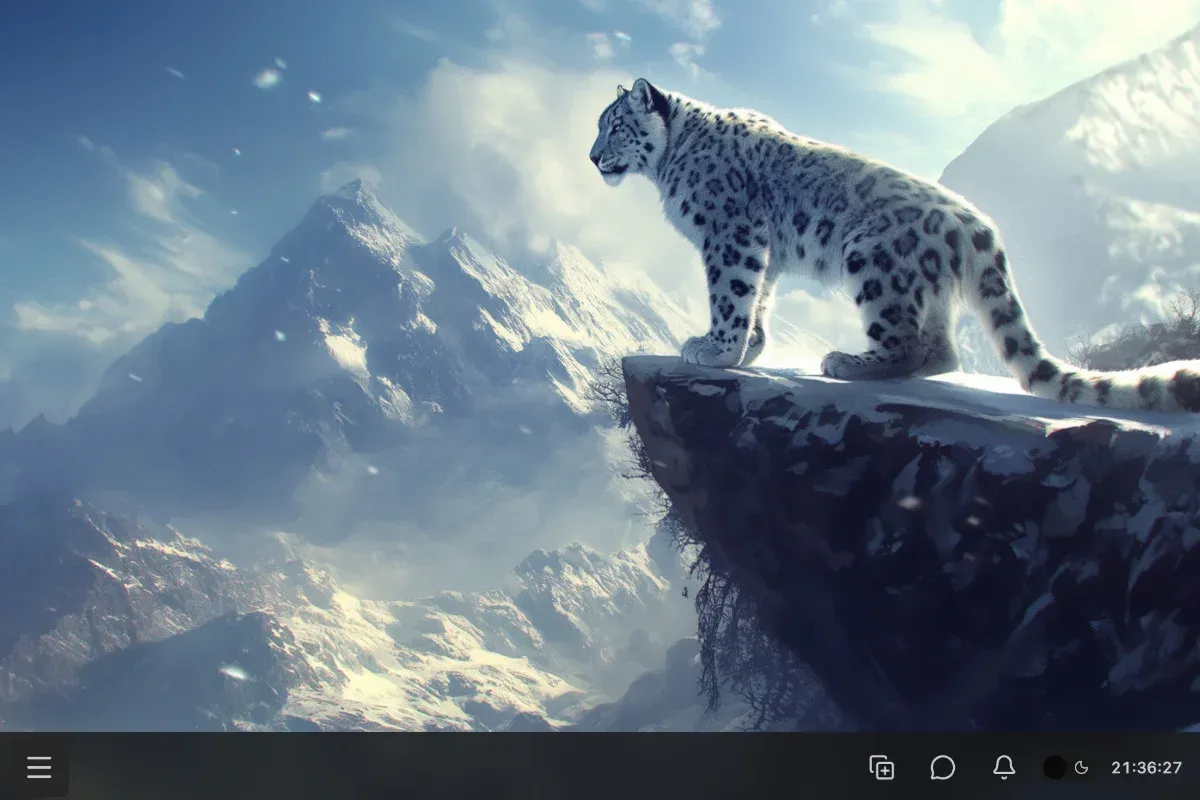 The ElyOS desktop environment at first launch
Next Steps
Section titled “Next Steps”Now that you’re logged in, familiarize yourself with using the interface:
More information: Using the Interface
Frequently Asked Questions
Section titled “Frequently Asked Questions”I didn’t receive the verification email. What should I do?
- Check your spam/junk folder
- Wait a few minutes, email delivery may take time
- Try resending the verification email
- Check if you entered your email address correctly
I lost my 2FA device. How can I log in?
- Use the recovery codes you saved when setting up 2FA
- If you don’t have recovery codes, contact the administrator
Why does the system automatically log me out?
- This is the session timeout security feature
- After prolonged inactivity, the system automatically logs you out
- Simply log in again to continue