
Overview
The ElyOS desktop environment provides a modern, intuitive interface for work. This guide introduces the basic functions of the desktop environment, including window management, taskbar, start menu, and desktop shortcuts.
Desktop Environment Structure
Section titled “Desktop Environment Structure”The ElyOS desktop environment consists of three main parts:
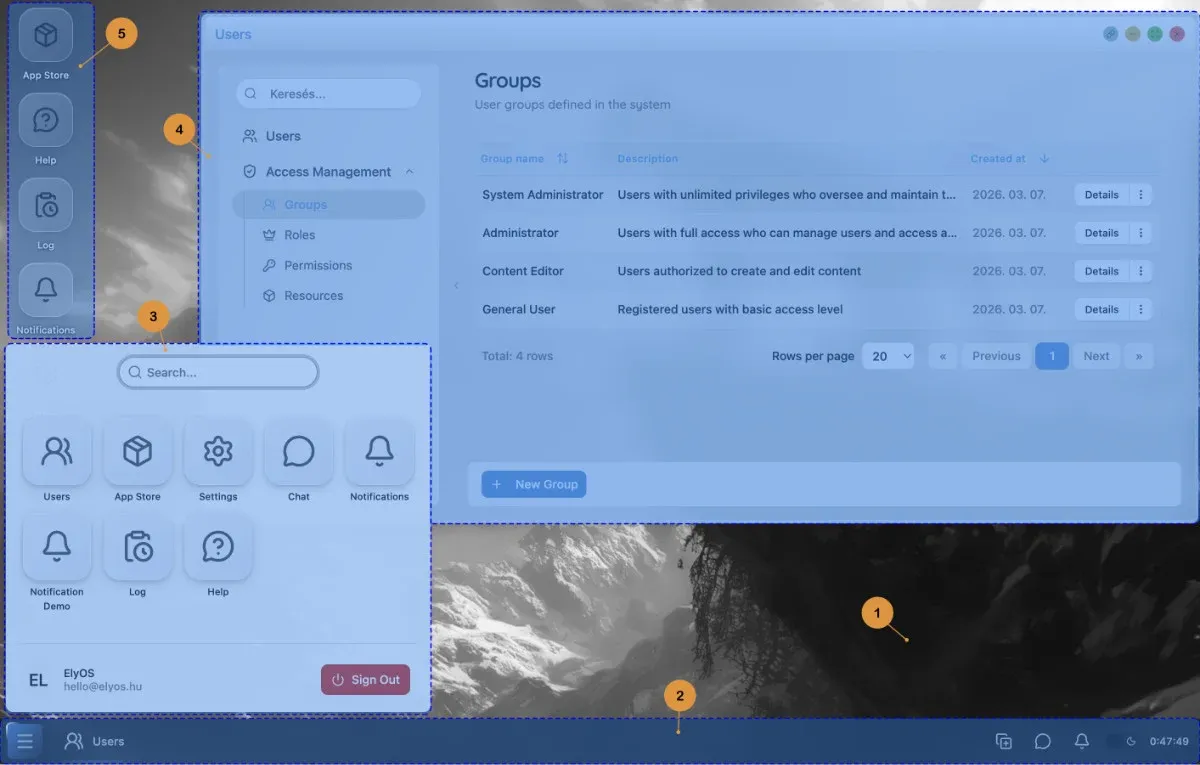 Main elements of the ElyOS desktop environment
Desktop (1)
Section titled “Desktop (1)”The desktop is the main workspace where application windows appear. Desktop shortcuts are also located here, providing quick access to frequently used applications.
Taskbar (2)
Section titled “Taskbar (2)”The taskbar is a bar at the bottom (or top) of the desktop that contains the following elements:
- Start menu button: Opens the menu for launching applications
- Application buttons: Buttons for running applications
- System icons: Clock, theme switcher, notification icon
Start Menu (3)
Section titled “Start Menu (3)”The start menu is the central access point for all installed applications. It displays applications in grid or list view and includes a search function.
Main Features
Section titled “Main Features”Window Management (4)
Section titled “Window Management (4)”ElyOS provides full-featured window management:
- Dragging and resizing windows
- Minimize, maximize, close
- Window control buttons (help, link sharing)
- Window previews on the taskbar
Detailed window management guide →
Desktop Shortcuts (5)
Section titled “Desktop Shortcuts (5)”Quick access to frequently used applications:
- Creating and organizing shortcuts
- Dragging and renaming
- Setting open mode (single/double click)
Context Menu
Section titled “Context Menu”Context-sensitive actions with right-click:
- Desktop context menu
- Shortcut context menu
- Taskbar and start menu context menu
Next Steps
Section titled “Next Steps”Learn about each function in detail:
- Window Management - Managing and controlling windows
- Taskbar - Quick access to applications and system functions
- Start Menu - Launching and searching applications
- Desktop Shortcuts - Managing shortcuts
- Context Menu - Right-click functions
Related Topics
Section titled “Related Topics”- Applications - Using built-in applications
- System Customization - Personalizing the interface