
Desktop Shortcuts
Desktop shortcuts provide quick access to frequently used applications.
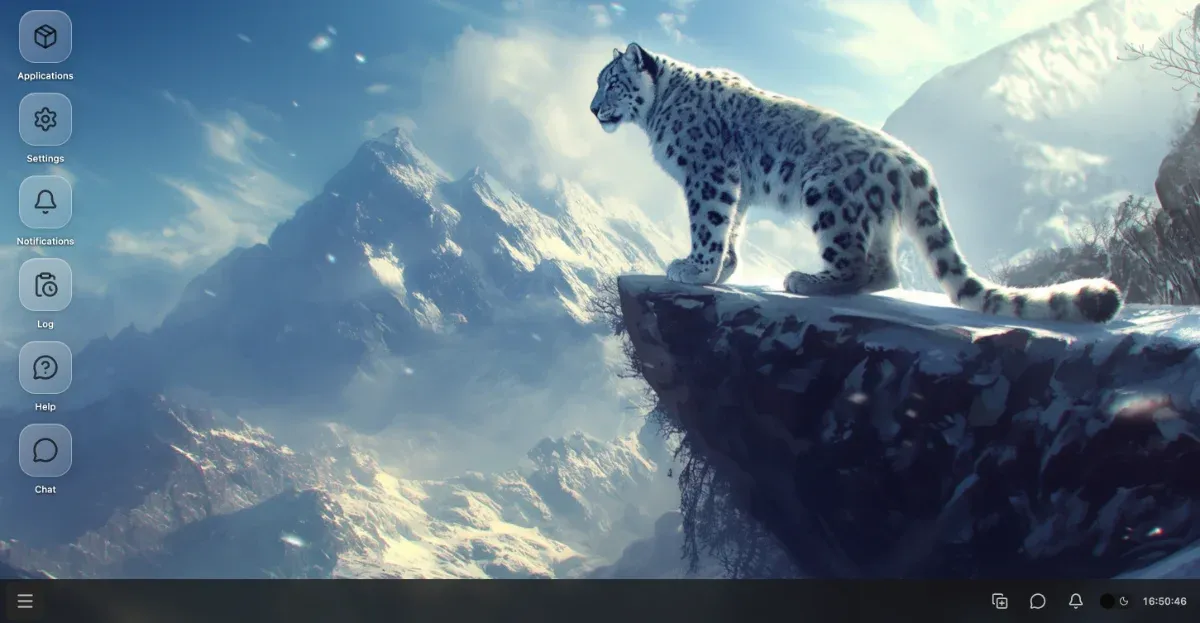 Desktop shortcuts on the desktop
Creating Shortcuts
Section titled “Creating Shortcuts”Creating a desktop shortcut from the Start Menu:
- Open the Start Menu
- Find the desired application
- Drag the application icon to the desktop
- The shortcut is automatically created on the desktop
Dragging Shortcuts
Section titled “Dragging Shortcuts”You can freely move shortcuts on the desktop:
- Click on the shortcut
- Hold down the mouse button
- Drag the shortcut to the desired location
- Release the mouse button
- The shortcut remains in the new location
Renaming
Section titled “Renaming”Renaming a shortcut:
- Right-click on the shortcut
- Select the “Rename” option from the context menu
- Enter the new name
- Press Enter or click elsewhere
Arranging
Section titled “Arranging”Automatically arranging desktop shortcuts:
- Right-click on an empty area of the desktop
- Select the “Arrange desktop icons” option
- Shortcuts are automatically arranged in a grid
Deleting
Section titled “Deleting”Deleting a shortcut from the desktop:
- Right-click on the shortcut
- Select the “Delete” option from the context menu
- Confirm the deletion
- The shortcut disappears from the desktop (the application is not deleted)
Hide/Show Icons
Section titled “Hide/Show Icons”Hiding or showing desktop shortcuts:
- Right-click on an empty area of the desktop
- Select the “Hide desktop icons” option to hide icons
- Icons disappear from the desktop but are not deleted
- To show icons again, select the “Show desktop icons” option
Tip: This feature is useful if you want a clean desktop for presentations or screenshots.
Shortcut Opening Mode
Section titled “Shortcut Opening Mode”ElyOS allows you to choose how desktop shortcuts open.
Single Click Mode
Section titled “Single Click Mode”In single click mode:
- One click: Launch application
- Faster: Fewer clicks required
- Advantage: Quick access to applications
Double Click Mode
Section titled “Double Click Mode”In double click mode:
- Double click: Launch application
- Advantage: Prevents accidental opening
- Traditional: Familiar desktop behavior
Switching Modes
Section titled “Switching Modes”Switching the opening mode:
- Open the Settings application
- Navigate to the “Desktop” > “General” section
- Select the desired mode in the “Open shortcuts” setting
- The change takes effect immediately
Note: This setting only applies to desktop shortcuts. In the Start Menu and other places, applications always launch with a single click.
Related Topics
Section titled “Related Topics”- Start Menu - Launching applications
- Context Menu - Right-click functions
- Settings - Configuring shortcuts