
Start Menu
The Start Menu is the central access point for all installed applications.
Opening the Start Menu
Section titled “Opening the Start Menu”- Click the Start Menu button on the left side of the taskbar
Grid View
Section titled “Grid View”Grid view displays applications with icons:
- Applications appear in a grid layout
- Each application has an icon and name
- Scroll down/up to view more applications
- Click an icon to launch the application
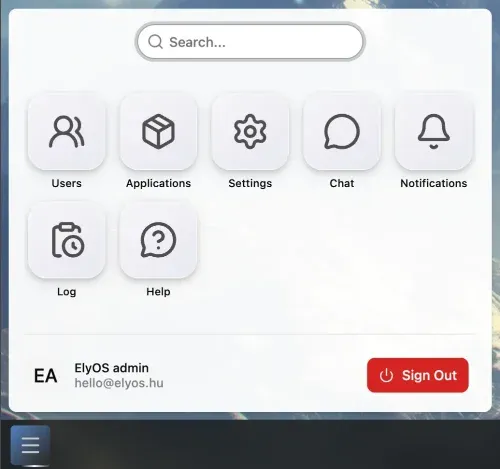 Start Menu in grid view
List View
Section titled “List View”List view displays applications in list format:
- Applications appear in a vertical list
- More compact display for more applications
- Switch between grid and list view with the view toggle button
- Click an item to launch the application
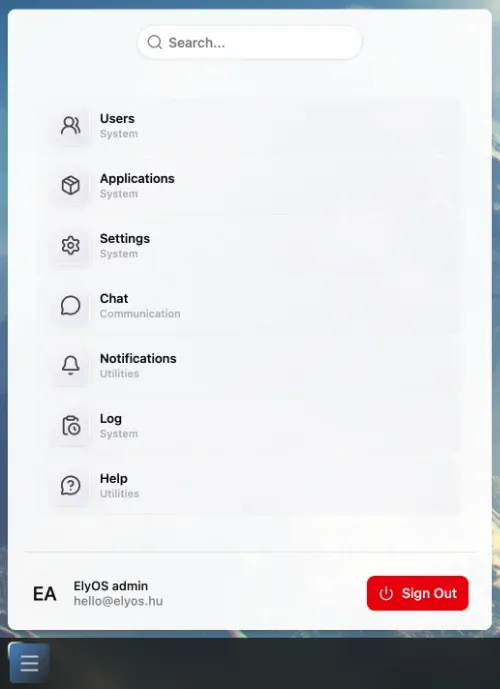 Start Menu in list view
Search Function
Section titled “Search Function”Search quickly finds the desired application:
- Open the Start Menu
- Start typing in the search field
- The application list automatically filters
- Click the desired application or press Enter
Launching Applications
Section titled “Launching Applications”Launching an application from the Start Menu:
- Open the Start Menu
- Find or search for the application
- Click the application icon or name
- The application starts and appears in a new window
Creating Desktop Shortcuts
Section titled “Creating Desktop Shortcuts”Creating a desktop shortcut from the Start Menu:
- Open the Start Menu
- Find the desired application
- Drag the application icon to the desktop
- The shortcut is automatically created on the desktop
More information: Desktop Shortcuts
Customizing the Start Menu
Section titled “Customizing the Start Menu”You can customize the Start Menu appearance in the Settings application:
- View: Grid or list
- Search settings: Search behavior
Related Topics
Section titled “Related Topics”- Applications - Using applications
- Desktop Shortcuts - Creating shortcuts
- Settings - Customizing the Start Menu