
Taskbar
The taskbar is located at the bottom of the desktop (or at the top if configured), providing quick access to applications and system functions.
 Main elements and features of the taskbar
Application Buttons
Section titled “Application Buttons”Running application buttons appear on the taskbar:
- Active application: Colored glowing shadow appears under the button
- Inactive application: Normal appearance without shadow
- Minimized application: Dimmer appearance with grayed icon
Using Application Buttons
Section titled “Using Application Buttons”Click on an application button:
- If the application is active: minimizes it (hides from desktop)
- If the application is inactive: brings to foreground and activates
- If the application is minimized: restores to desktop and activates
Window Previews on Taskbar
Section titled “Window Previews on Taskbar”If enabled in the Settings application (Performance section), inactive or minimized windows have preview images:
- Hover your mouse over an application button on the taskbar
- The window preview image appears
- Click the button to bring the window to foreground or restore it
The clock is located on the right side of the taskbar:
- Displays the current time
- Clock display can be toggled on/off in Settings
Theme Switcher Button
Section titled “Theme Switcher Button”The theme switcher button allows quick switching between light and dark modes:
- Click the theme switcher button (sun/moon icon)
- The theme switches immediately
- The setting is automatically saved
For more customization options, see: System Customization
Notification Icon
Section titled “Notification Icon”The notification icon indicates new notifications:
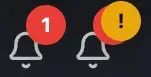 Notification icon in different states
Notification States
Section titled “Notification States”- Critical notification: Yellow exclamation mark in circle pulsing above icon
- Unread notifications: Red number in circle showing count of unread notifications
- No notifications: Only the notification icon (bell) is visible
- Click: Opens the Notification Center
Note: If there are both critical and normal unread notifications, both indicators appear on the icon.
More information: Notifications Application
Application Opener (GUID Link)
Section titled “Application Opener (GUID Link)”The Application Opener feature allows you to open applications based on GUID links:
 GUID link-based application opening from the taskbar
How Does It Work?
Section titled “How Does It Work?”- Click the “Application Opener” icon in the bottom right corner of the taskbar (CopyPlus icon)
- Paste the received GUID link into the appearing field
- Click the “Open” button or use the quick paste button (clipboard icon)
- The application opens exactly in the state it was shared with you
Generating GUID Links
Section titled “Generating GUID Links”GUID links are generated with the window’s Link button, which automatically copies the link to the clipboard.
Important Information
Section titled “Important Information”- If the application is not yet open, the GUID link opens it in the specified state
- If the application is already running, the link updates its state (e.g., navigates to the appropriate menu item)
- The link contains the application name and parameters (e.g., current menu item)
- Ideal for teamwork, education, and bug reports
Customizing the Taskbar
Section titled “Customizing the Taskbar”You can customize the taskbar’s appearance and behavior in the Settings application:
- Position: Bottom or top
- Show clock: Toggle on/off
- Application buttons: Style and behavior
Related Topics
Section titled “Related Topics”- Window Management - Managing windows
- Notifications - Managing notifications
- Settings - Customizing the taskbar