
Modal Windows
Modal windows are temporary pop-up windows that display important information or request confirmation from the user. When modal windows appear, the background darkens and the user can only interact with the modal window.
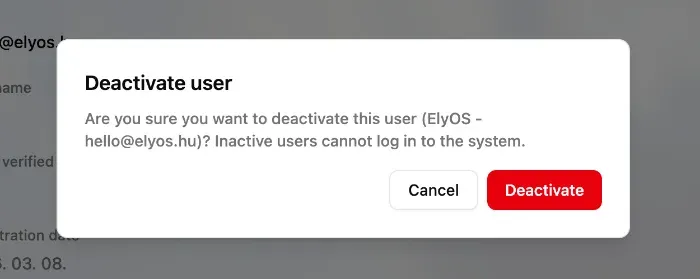 Example modal window
Types of Modal Windows
Section titled “Types of Modal Windows”ElyOS uses two main types of modal windows:
1. Confirmation Window
Section titled “1. Confirmation Window”The confirmation window is a simple, two-button window that requests user confirmation before executing an important action.
Structure:
- Title: Brief description of the action (e.g., “Delete User”)
- Description: More detailed information about the action and its consequences
- Cancel button: Cancels the action and closes the window
- Confirm button: Executes the action
When does it appear?
- Before delete operations (deleting user, group, role)
- Before irreversible actions
- Before modifying important settings
Example usage:
- Click the “Delete” button next to an item
- The confirmation window appears
- Read the description and warning
- Choose:
- Cancel: Cancels the action, nothing happens
- Delete/Confirm: Executes the action
Visual indicators:
- Dangerous actions: Confirm button is red (e.g., delete)
- Normal actions: Confirm button is blue or gray
2. Custom Window
Section titled “2. Custom Window”The custom window displays more complex content, such as forms, detailed information, or multi-step processes.
Structure:
- Title: Window title
- Description (optional): Brief explanation
- Content area: Custom content (forms, lists, etc.)
- Action buttons: One or more buttons to execute actions
When does it appear?
- Creating new items (e.g., new user, new group)
- Complex editing operations
- Multi-step processes
- Displaying detailed information
Example usage:
- Click “Create New” or similar button
- The custom window appears with the form
- Fill in required fields
- Click “Save” or “Create” button
- The window closes and the action is executed
Using Modal Windows
Section titled “Using Modal Windows”Opening a Window
Section titled “Opening a Window”Modal windows automatically open when you initiate a specific action:
- Pressing delete button
- Pressing create new item button
- Pressing edit button (in some cases)
Closing a Window
Section titled “Closing a Window”You can close modal windows in several ways:
- Cancel/Close button: Cancels the action
- X button (top right corner): Cancels the action
- Escape key: Cancels the action
- Click on background: Cancels the action in some windows
- Execute action: After pressing the confirm button, the window automatically closes
Important: If you close the window without executing the action, changes will not be saved!
Tips and Tricks
Section titled “Tips and Tricks”- Quick close: Press the Escape key to quickly close the modal window (if enabled)
- Read carefully: Red button actions are usually irreversible
- Form completion: Required fields are usually marked with an asterisk (*)
Related Topics
Section titled “Related Topics”- Toast Messages - Feedback on actions performed in modal windows
- Data Tables - Modal windows often open from data tables
- Users Application - Example of modal window usage